One Checkbox, 55KB, and Only Two Date-Heavy Tables
Power BI, Performance
Auto Date/Time is on by default in Power BI, and it does something more expensive than most people realise: for every date column in every table, it builds a hidden Year/Quarter/Month/Day hierarchy table. Whether you use it or not.
Two tables, five hidden hierarchies
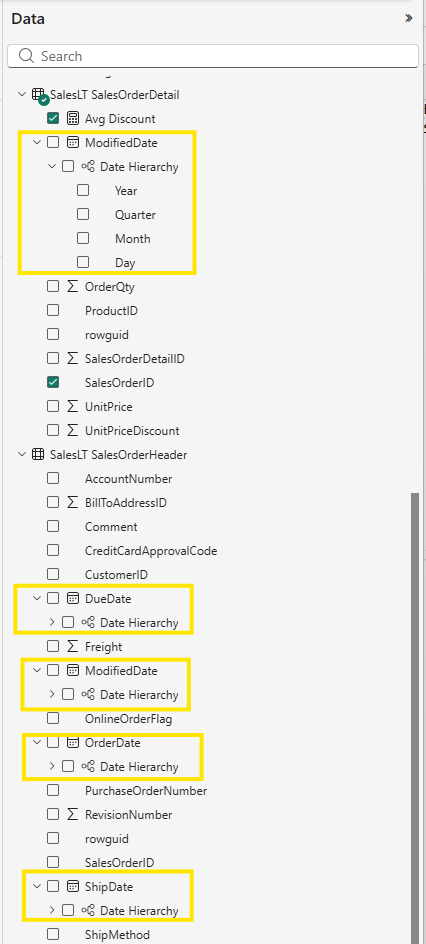
I loaded exactly two tables from SalesLT — SalesOrderDetail and SalesOrderHeader. Between them they had five date columns: ModifiedDate, DueDate, OrderDate, ShipDate, and a second ModifiedDate. Every one of them got its own auto-generated date hierarchy in the field list. I'd asked for none of them. Most reports need real date intelligence on one column, maybe two.
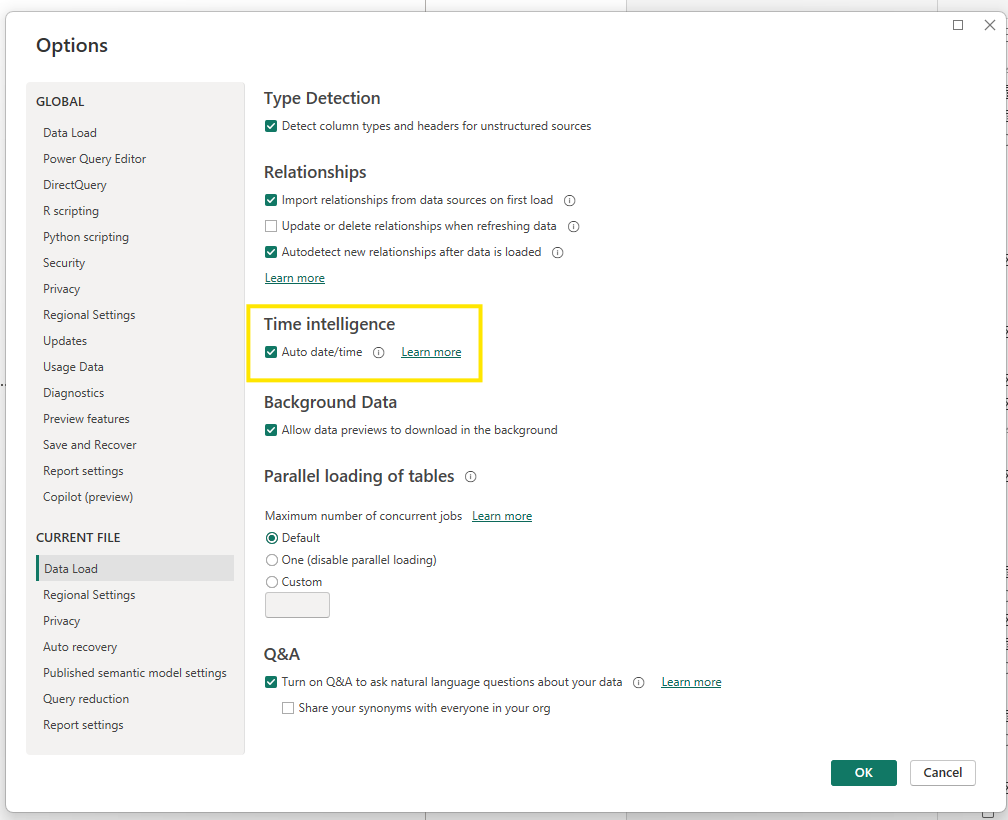
The fix is unchecking one box
File → Options → Data Load → Time Intelligence → uncheck Auto date/time. Do it under Global, not just Current File, so every new file starts clean.
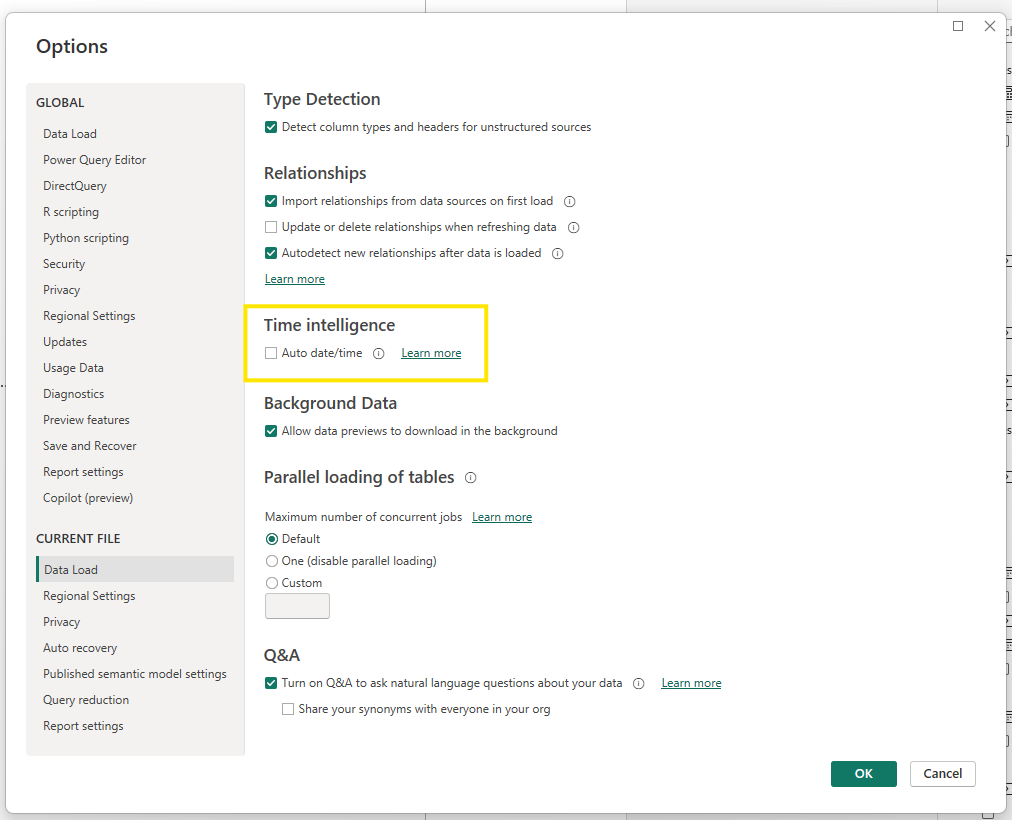
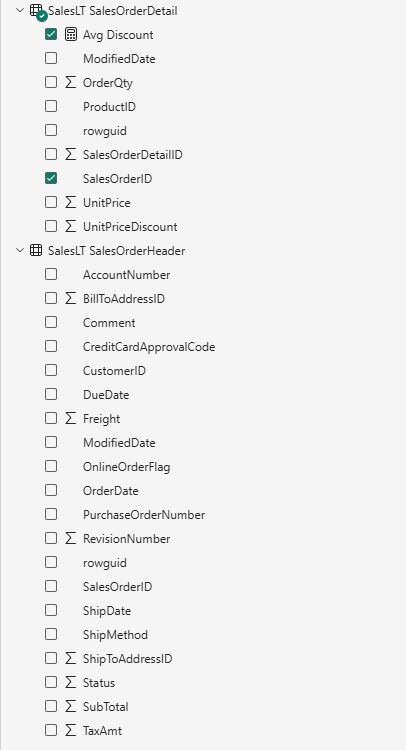
No rebuild for a new file. An existing file needs the date columns reloaded before the field list clears out.
What it saved
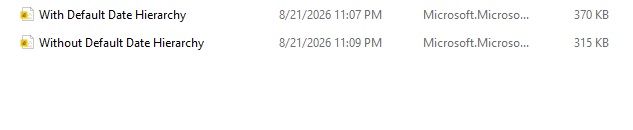
I saved the same model two ways for a direct comparison: 370KB with the default hierarchies, 315KB without. A ~15% reduction from one checkbox, on a model with two tables.
Auto Date/Time is a convenience that bills you silently on every date column — extra tables, larger files, slower refresh. Turn it off globally and build date tables where you actually need them.
What I take from this
- The cost scales with the number of date columns, not the number you actually use
- 15% on a two-table model; on a real model with dozens of date columns it compounds fast
- Turn it off at the Global level so every new file inherits the clean default